
5Keys Engage is designed to accurately capture the majority of your trips but there are some occasions where despite our best efforts we miss all or part of a trip. These can include:
- Phone is off or the battery runs extremely low
- Phone has poor GPS due to environmental conditions such as being placed under a large object, being next to another phone/large electronic device or entering an area of poor GPS reception
If this happens and you use 5Keys Engage for Mileage management or simply for your own records then there are some simple tools you can use.
Edit Trip
When viewing the trip detail, you also have the option to Edit the trip for starting point, end point and mileage of the Trip by clicking on edit in the top right of the screen.
Use this option if we have not accurately captured the start, end or mileage of a Trip.
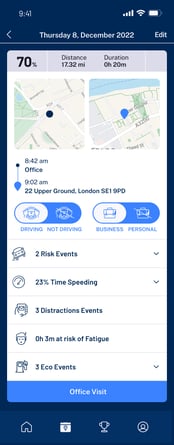
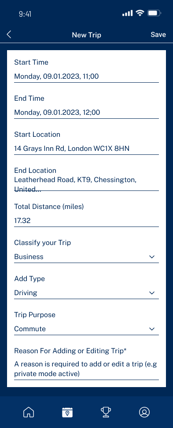
Trips that are edited will be indicated on the mileage manager export
Add Trip
If 5Keys Engage has missed one of your driving Trips, go the date of the missed trip, then, press + to add a Trip manually.
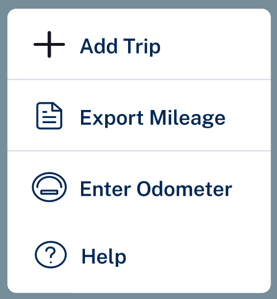
You will now be able to create a manual record of a trip. To finish creating the trip just press the save icon in the top right of the screen.
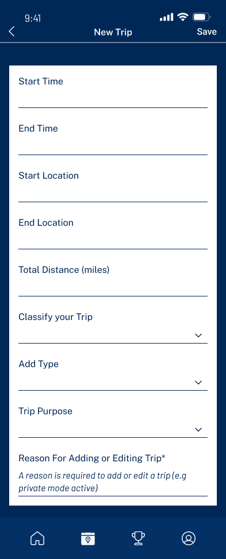
Manually added trips will be marked with the "added" label and can be edited by visiting the trip detail like you would any other trip.
No Five metric scores or 5Keys Engage awards will be available for manually added trips
Trips that are manually added will be highlighted on the Mileage Manager export